Cells
Toonboom is sort of stuck between the traditional animation and the digital mentalities. When it first starts up, over on the right is a traditional dope sheet (exposure sheet, x-sheet, etc.). Those familiar with timing things out before animating will be on familiar ground -- you can even time the animation out in Toonboom without having any artwork. But in Sceneplanning mode, Toonboom has a timeline much like other non-linear editors. How the two interact is a little odd, and even after a week or so using Toonboom I still do not have a good grasp of how it works.
One of the first thing you learn when using Flash is to make everything a symbol. Usually, when doing linear animation, it would be a Graphic symbol. You can then grab those symbols from the Library, switch them out, and generally make a nice collection of body parts and props. Maybe even sorted into folders, or shared among a team. One of the most annoying things about Flash is how the Library doesn't automatically show when opening a file, seeing as though it is so useful.
When Toonboom opens, there isn't a Library either. But just like Flash, there is one, you just have to show it. And it works in much the same way. There are two big differences:
While this took me some time to get around, I now think its pretty darn cool. It does, however, require some thought when creating artwork. Elements, the vertical columns in the exposure sheet, need to be named clearly, and attention should be paid to what you draw in each column. Open your Library, and check out how symbols are made as you draw and add new exposures.
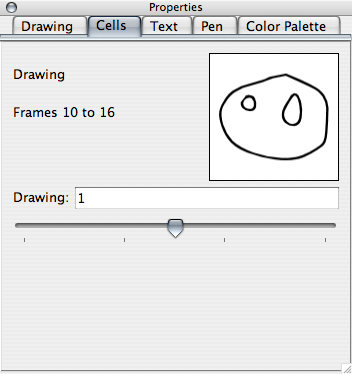
A cool benefit to this is changing the symbols around. With Flash, the best you could hope for is to name symbols well, and put them in clear folders. When it came to switch symbols around, you could click the "Swap Symbol" button, and find your replacement symbol (as long as the folder it is in is open in the Library. Bad, bad bug). With Toonboom, you can select a bunch of cells, and using the Cell palette set the symbol to what you're after.

I look forward to finding out more how this could be used in production.
One of the first thing you learn when using Flash is to make everything a symbol. Usually, when doing linear animation, it would be a Graphic symbol. You can then grab those symbols from the Library, switch them out, and generally make a nice collection of body parts and props. Maybe even sorted into folders, or shared among a team. One of the most annoying things about Flash is how the Library doesn't automatically show when opening a file, seeing as though it is so useful.
When Toonboom opens, there isn't a Library either. But just like Flash, there is one, you just have to show it. And it works in much the same way. There are two big differences:
- Everything you draw in an Element cell automatically becomes a symbol
- Those symbols are automatically named for the Element is was drawn in, appended with a number.
While this took me some time to get around, I now think its pretty darn cool. It does, however, require some thought when creating artwork. Elements, the vertical columns in the exposure sheet, need to be named clearly, and attention should be paid to what you draw in each column. Open your Library, and check out how symbols are made as you draw and add new exposures.
A cool benefit to this is changing the symbols around. With Flash, the best you could hope for is to name symbols well, and put them in clear folders. When it came to switch symbols around, you could click the "Swap Symbol" button, and find your replacement symbol (as long as the folder it is in is open in the Library. Bad, bad bug). With Toonboom, you can select a bunch of cells, and using the Cell palette set the symbol to what you're after.
I look forward to finding out more how this could be used in production.
posted by Anonymous at 2:34 PM
0 comments
